Sonacella listening guide
Split a long MP3 into tracks
Turn a continuous mix, concert, or audiobook into tracks you can jump between. Give Sonacella a TXT file with the start times and it creates the track entries automatically. The original MP3 stays whole.
1. Copy the TXT template
Example: a YouTube mix with a tracklist
Say you find a long mix on YouTube with track times in the description. Get the MP3 of that same version from a download the artist or label offers, or from a store that sells the recording as a downloadable file. If you own the recording, you can use your original audio. YouTube Premium downloads are for offline playback within YouTube. YouTube offline download FAQ.
Check the times against your MP3, since another release may have a different intro or edits. If the description lists “31:29 Easy Midnight Pulse,” enter 00:31:29 Easy Midnight Pulse in the TXT. Save the pair as Mix.mp3 and Mix.tracks.txt.
Use one line per track: the start time in HH:MM:SS, a space, then the track title. Use at least two start times and put them in increasing order. Replace the sample times with the points where your tracks actually start.
Save as plain UTF-8 text. Use the same base name for both files, for example Mix.mp3 and Mix.tracks.txt. The next start time ends the current track. The last track plays to the end of the MP3.
2. Import the tracks
- Switch to MP3 and open the playlist where you want the tracks.
- Open the three-dot menu, tap Add timing file, and select your TXT.
- Tap Choose MP3 to select the matching local file. For an online file, paste a direct HTTPS or shared Google Drive MP3 link and tap Check MP3.
- Check the track count, then tap Add tracks. Each chapter appears as a separate playlist entry.
Import a Google Drive folder. Put the matching MP3 and TXT in the same shared folder. Give anyone with the link access and allow downloads. In Playlists → Import Drive folder, paste the folder link. Sonacella creates the playlist automatically and adds chapters for MP3s with matching timing files.
3. Read the track card
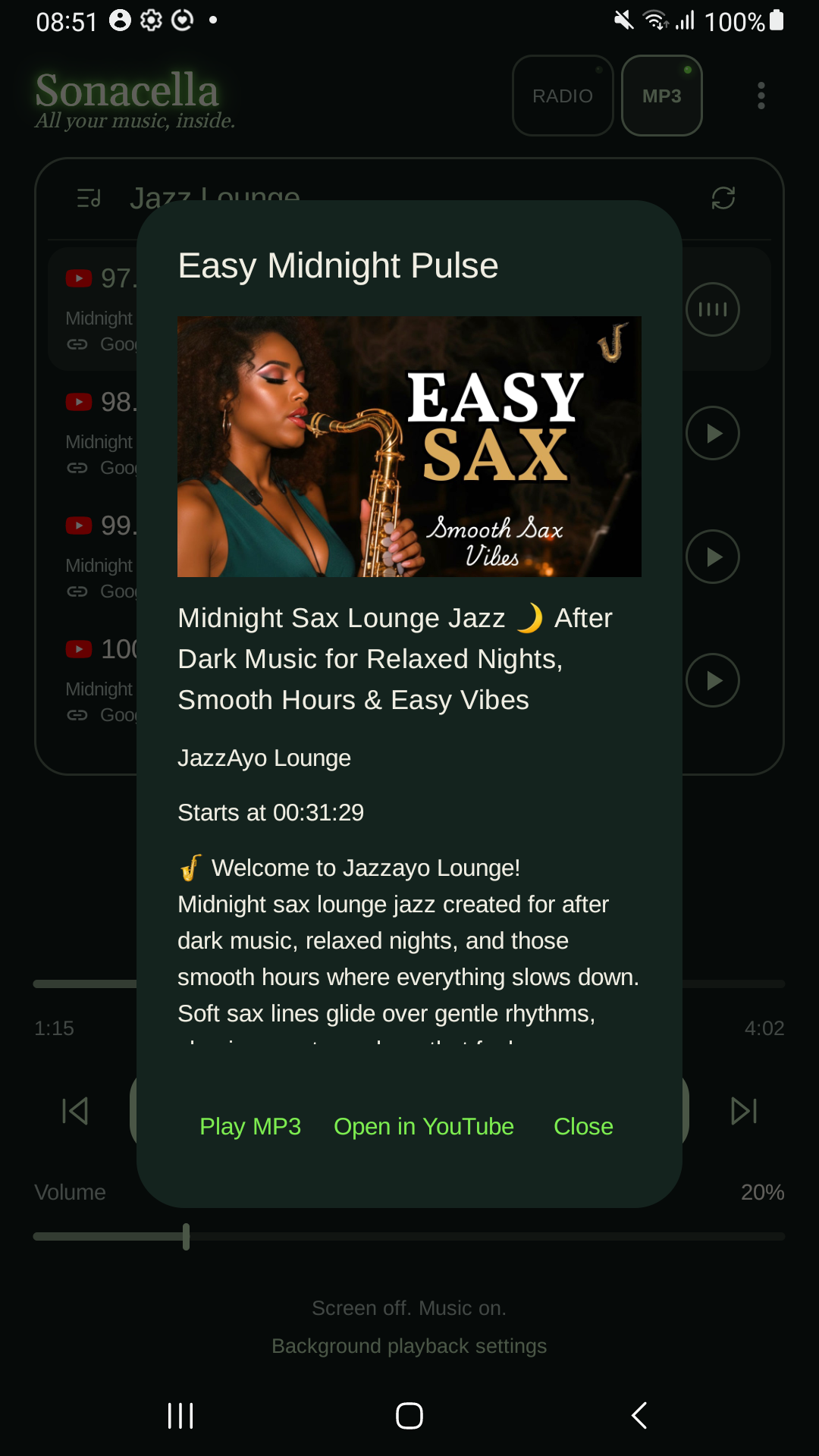
Open About track from the track menu. The example below shows a chapter with optional YouTube source details.
Follow the arrows, or select a field to highlight it on the card.Match the numbers. Select a field to highlight its place on the card.
 1
2
3
4
How optional source details work
A Source: line with a valid YouTube video URL goes above the timestamps. It links the card to the original video at the chapter start. The MP3 still supplies the audio.
An optional YouTube metadata: line above the timestamps can add the recording title, channel, description, and artwork. It uses one line of JSON, and its video ID must match the source URL. You can leave both header lines out of the basic TXT template.
4. Build the card from a real timing file
The card above shows Easy Midnight Pulse, a chapter in a JazzAyo Lounge mix. Compare the excerpt with the original timing file in Google Docs. This shorter header keeps the full recording title, channel, and artwork. The original also includes a longer description.
- Identify the video. Put its YouTube watch URL after
Source:. Copy the value after v= into videoId. Both IDs must match. Set version to the number 1.
- Copy the full title. Put the title from the YouTube page in the JSON
title field. It appears below the artwork. The name after a timestamp is the chapter title at the top of the card.
- Choose the thumbnail. Set
thumbnailUrl to the video's HTTPS image on i.ytimg.com. Open this example thumbnail. For another video, replace the ID between /vi/ and /maxresdefault.jpg and check that the image opens. If that size is unavailable, omit thumbnailUrl to use Sonacella's standard YouTube thumbnail.
- Save and import. Put
Source: and YouTube metadata: above the timestamps. Keep the JSON on one physical line, use straight double quotes, and escape quotes and line breaks inside values. Save as UTF-8 with the same base name as your MP3. Follow the import steps, then open About track for Easy Midnight Pulse and check Starts at 00:31:29.
Use the download for the whole mix. The excerpt begins partway through it. The TXT contains timings and source details. Playback requires an authorized MP3 of the same version.
Get metadata with the official YouTube Data API
Open videos.list. In the API Explorer or with your own API key, use part=snippet and the video's id. From items[0].snippet, copy title and channelTitle. Use an available thumbnails.maxres.url or thumbnails.high.url on i.ytimg.com for thumbnailUrl. Optionally add description as a JSON string with escaped line breaks. The manual steps above work without an API key.